
Updating the printer
The G1 has two updates, and they are not the same thing. Running one does nothing for the other, which is why a machine can be fully up to date in one sense and out of date in the other.
| Update Manager | UPDATE G1 | |
|---|---|---|
| Where | Machine → Update Manager | UPDATE G1 in the sidebar |
| Updates | The software: Klipper, Moonraker, Mainsail, the display, the Ginger layer | Your machine’s own configuration |
| Comes from | The public projects and Ginger’s repositories | Ginger’s configuration for your serial number |
| Same for every G1? | Yes | No — it is specific to your printer |
The printer checks for its own configuration once an hour, and UPDATE G1 in the sidebar is where you apply it. Do not read by Ginger Additive as an all-clear — that entry is always there.
Before you start
Section titled “Before you start”- Not while printing. Both updates restart services, and one of them restarts Klipper
- The printer needs to reach the internet — it pulls from GitHub
- Know your serial number if the machine has never been initialised; without it the configuration update cannot run at all. See Initialize the printer
Part 1 — The software components
Section titled “Part 1 — The software components”-
Open the interface at
http://g1os.localand go to Machine in the left sidebar -
Refresh the list. In the Update Manager panel, click the circular arrow at the top right. Components in orange have something available; grey ones are current
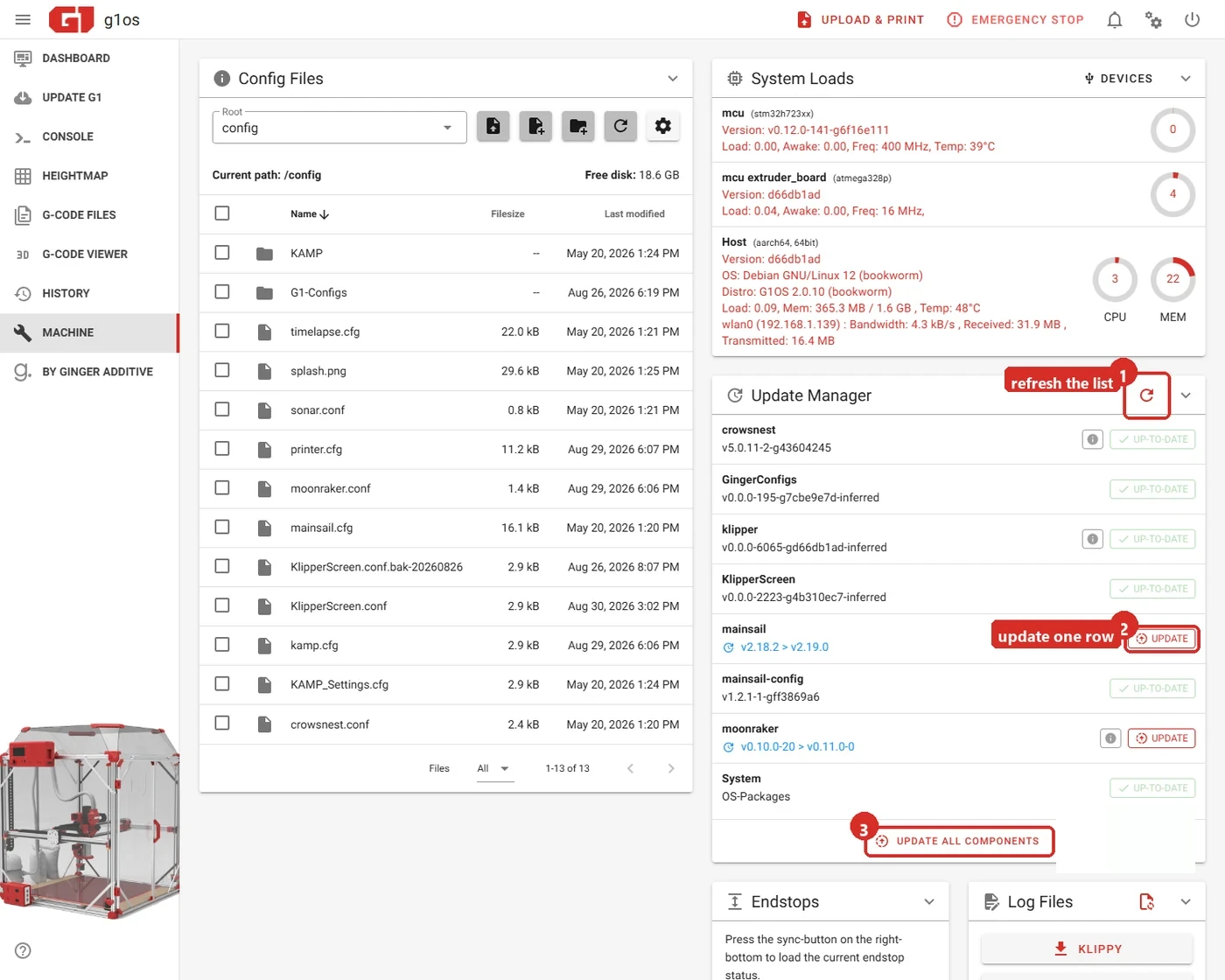
The UPDATE ALL COMPONENTS button at the bottom takes every row at once. That is what you want.
-
Press UPDATE ALL COMPONENTS. There is no reason to go row by row
-
Accept the warning. A dialog appears listing what may need manual attention.
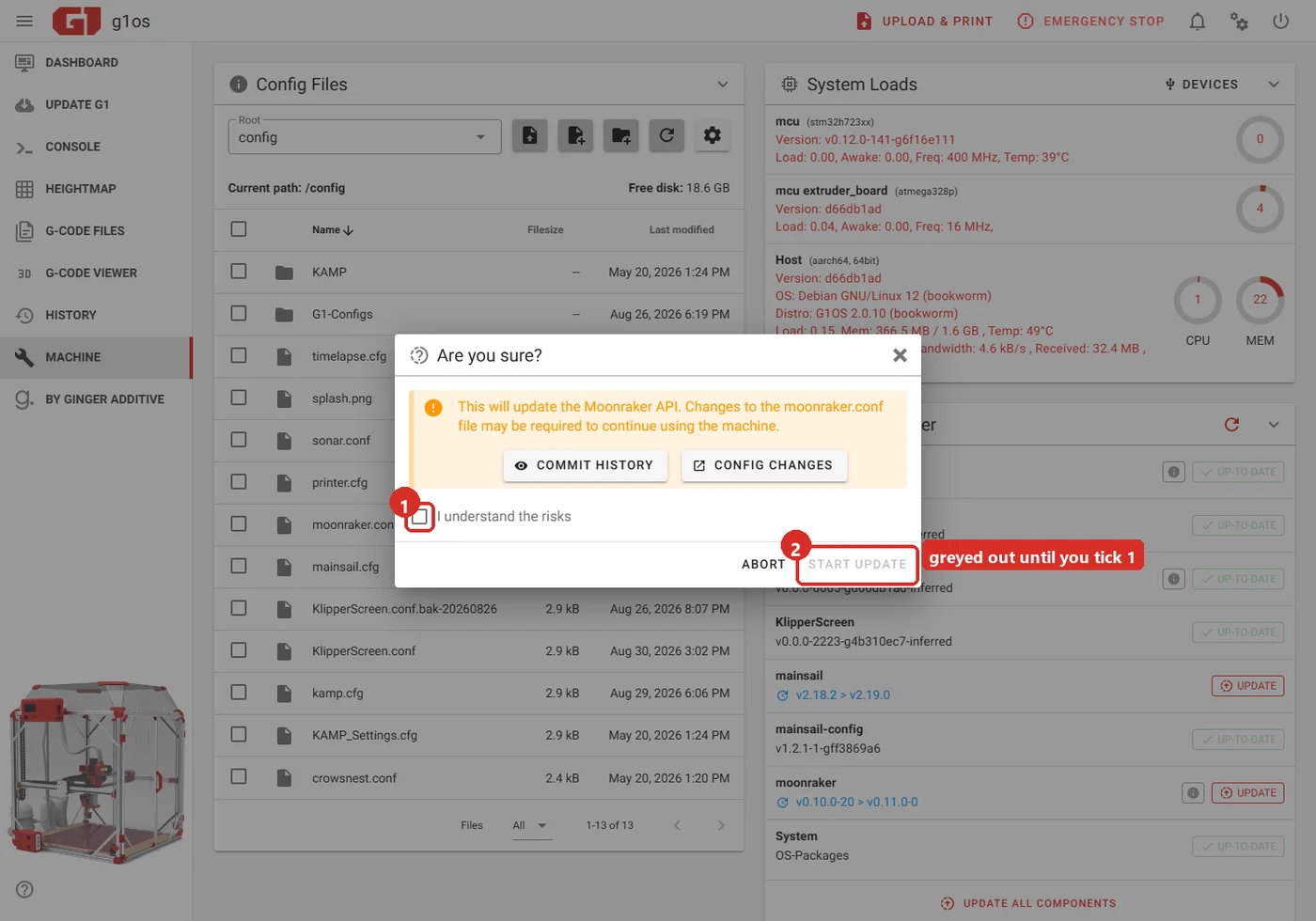
START UPDATE stays greyed out until you tick “I understand the risks.” That is not a fault — tick the box, then press it. ABORT closes the dialog and changes nothing.
The dialog above happens to be Moonraker’s. Moonraker is included, and that is correct.
-
Wait. The printer performs a firmware restart on its own when it finishes
-
Reboot the host. Power icon (top right) → Reboot, under Host Control. This is not optional — some changes only take effect after it
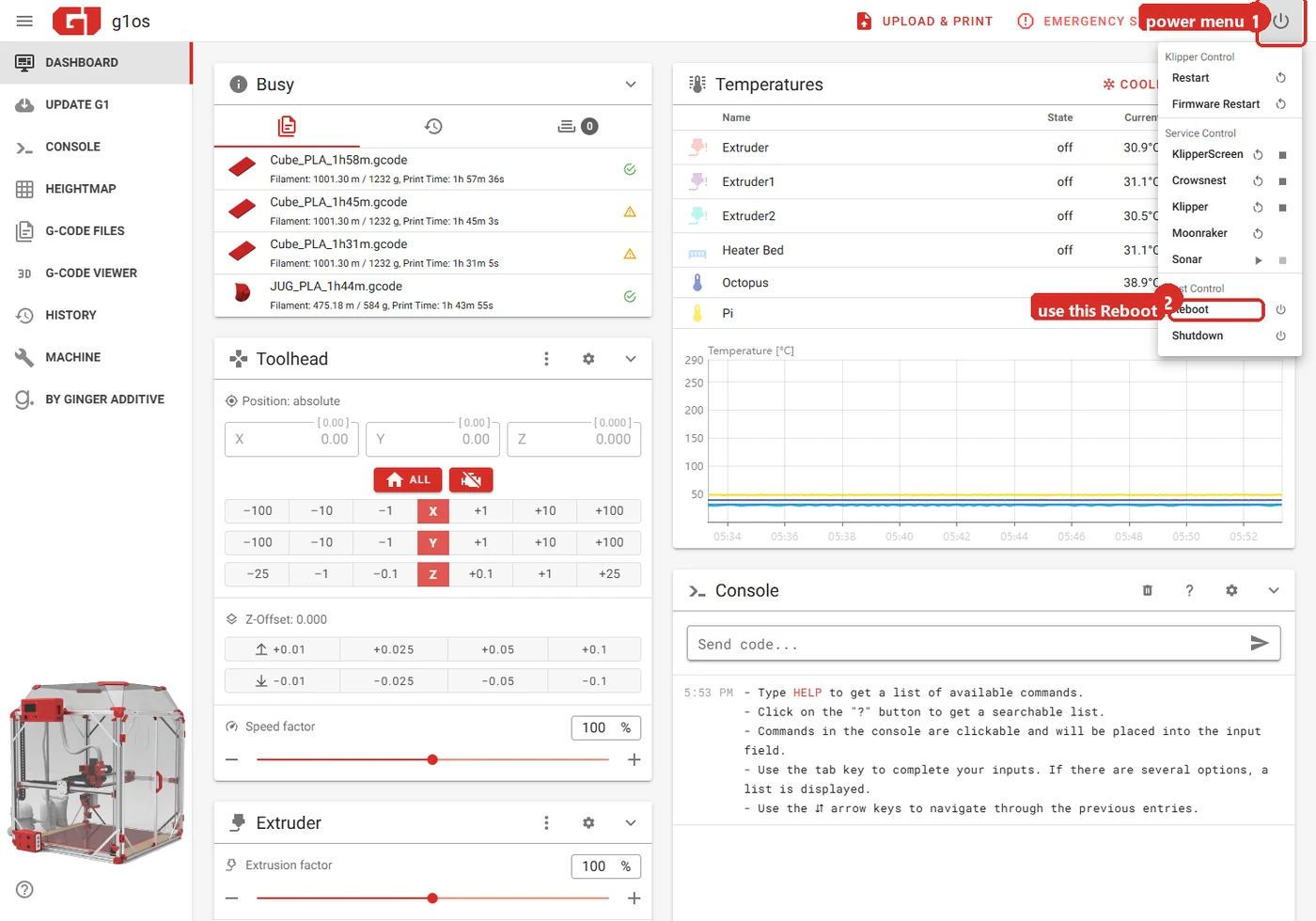
Take the one under Host Control. Restart and Firmware Restart at the top only restart Klipper, which is not the same thing
-
Close the browser completely and open it again at
http://g1os.local. Not just the tab: without a fresh session the interface keeps serving what it had cached, and it will look as though nothing changed
Part 2 — Your machine’s configuration
Section titled “Part 2 — Your machine’s configuration”This is the one behind UPDATE G1, and it is the reason the printer needs to know its serial number.
-
Look at the sidebar for UPDATE G1. The by Ginger Additive entry below it is permanent and means nothing either way
-
Click UPDATE G1. There is no dialog and no progress bar — the printer downloads the configuration files published for your serial number and applies them
-
Wait for the page to come back. If
printer.cfgwas among the updated files, the printer restarts Klipper by itself -
Check the sidebar again. It should now read by Ginger Additive
Part 3 — Flash the Octopus
Section titled “Part 3 — Flash the Octopus”The two updates above both run on the Raspberry Pi. Neither writes anything to the control boards, so after updating the software the main board is still running whatever firmware it was flashed with — and the dashboard starts reporting it as out of date.
Flash it. Put the current firmware.bin on a microSD card, put the card in
the slot on the board, and power the printer for a few seconds; the bootloader
takes it and renames the file. The full procedure, the download and what to check
afterwards are in
Flashing the control boards.
Afterwards
Section titled “Afterwards”- Check the display — it should reach its normal screen. If it says Unauthorized, the update did not take: read this
- Refresh the Update Manager once more. Some updates reveal others underneath
- Home the machine and run a short print. An update that broke something shows up in motion or heating, not in the interface
If something went wrong
Section titled “If something went wrong”| What you see | What it means |
|---|---|
| Display shows Unauthorized, browser fine | The update did not complete, or KlipperScreen is still on the old build — update everything again |
| Interface unchanged after updating | Browser not fully closed and reopened — repeat step 7 |
| UPDATE G1 never appears | The machine has no serial number yet — initialise it |
| Klipper will not start after an update | Read the error at the top of the dashboard, then the log over SSH |
| A component shows as invalid or detached | It is pinned to a fixed version on purpose. Leave it, unless you know why it was pinned |
Related notes
Section titled “Related notes”- Initialize the printer — first-time setup and the serial number
- Display stuck after a Moonraker update
- SSH access to the printer
- G1OS software stack
- Firmware restart